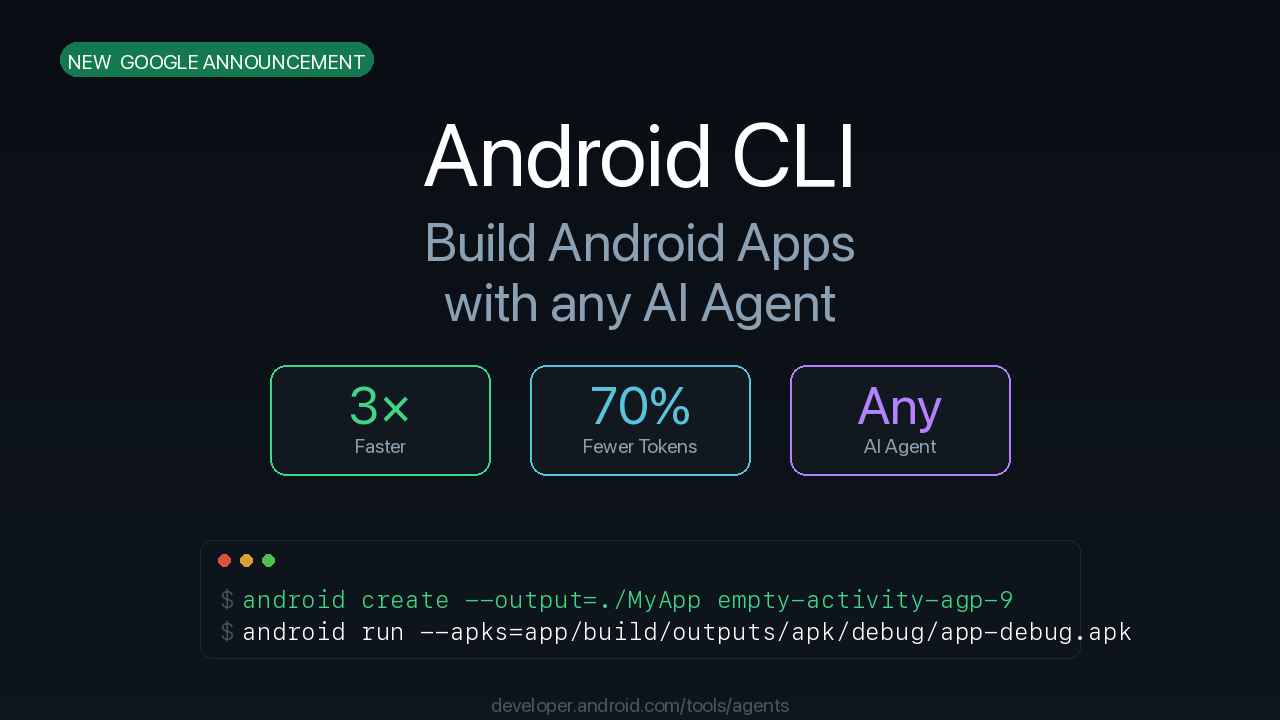

Google announced a new tool for Android developers: Android CLI.
It works with any AI agent — Claude Code, Gemini CLI, Codex, or others. It makes AI-assisted Android development 3x faster and cuts LLM token usage by 70%.
In this article I’ll explain what Android CLI is, what commands it has, and how to get started.
What Is Android CLI?
Android CLI is a command-line tool built for AI agents.
It replaces the old fragmented tools: sdkmanager, avdmanager, and adb. All of them are now unified under one binary: android.
The goal is simple: let AI agents build Android apps without needing Android Studio open.
Why 70% Fewer Tokens?
When an AI agent builds an Android app using old tools, it has to:
- Parse verbose error messages
- Navigate multiple separate commands
- Read full UI state every time the screen changes
Android CLI fixes this. Commands return structured output. The android layout --diff command only returns what changed on screen, not the entire view hierarchy. Agents get exactly the data they need and nothing extra.
That is why token usage drops by 70%.
Key Commands
Set Up the Environment
# Download SDK components
android sdk install platforms/android-35 build-tools/35.0.0

# Initialize environment for agents
android init
Create a New Project
# List available templates
android create list

# Create a new project
android create --output=./MyApp --name=MyApp empty-activity-agp-9
Manage Emulators
# Create a virtual device
android emulator create --profile=medium_phone

# List available devices
android emulator list

# Start a device
android emulator start medium_phone
Deploy Your App
# Build with Gradle first, then deploy
./gradlew assembleDebug
android run --apks=app/build/outputs/apk/debug/app-debug.apk
Capture UI for Agents
# Get the full UI layout as JSON
android layout --pretty

# Get only what changed since last snapshot
android layout --diff

# Take a screenshot
android screen capture --output=ui.png
Search the Docs
# Search the Android Knowledge Base
android docs search 'How do I improve app performance?'
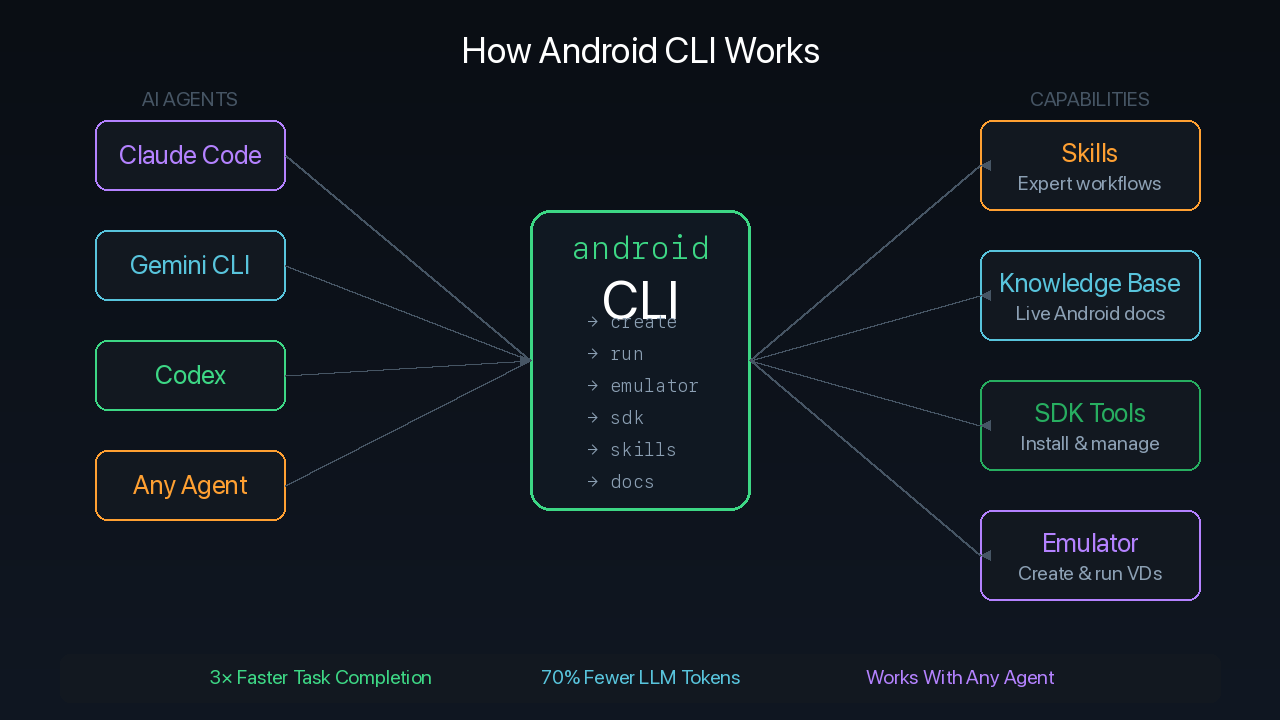
Android Skills
Android Skills are pre-written instructions for AI agents.
Think of them like system prompts for specific Android tasks. Each skill tells the agent how to do something step by step — using best practices, correct APIs, and current architecture patterns.
Available skills include:
- Migrate from XML layouts to Jetpack Compose
- Upgrade to AGP 9
- Set up Navigation 3
- Make your app edge-to-edge
- Audit R8 configuration for performance
How to Use Skills
# List all available skills
android skills list

# Install a skill for your agent
android skills add --agent=claude edge-to-edge

# Find skills about a topic
android skills find 'performance'
Skills are stored as markdown files. You can also create your own custom skills for your team.
Android Knowledge Base
The android docs command connects your agent to the Android Knowledge Base.
This is a searchable database built from:
- developer.android.com
- Firebase documentation
- Google Developers blog
- Kotlin documentation
Your agent gets current information — not whatever is in the LLM’s training data from a year ago.
android docs search 'Compose LazyColumn performance'
Which Agents Work With It?
Android CLI works with all major agents:
- Claude Code — install skills via
android skills add --agent=claude - Gemini CLI — install via
android skills add --agent=gemini - Codex — supported
- Any other agent — skills follow the open agent skills standard
How to Get Started
Android CLI is in preview. You can download it at d.android.com/tools/agents.
# After installation, update to the latest version
android update

# Check what you have
android --version
android info