Every real app needs data from the internet. A weather app calls a weather API. A social app loads posts from a server. A store app fetches products from a backend.
Retrofit is the most popular library for making HTTP requests in Android. In this tutorial, you will learn how to use it with Compose to build a screen that loads, displays, and handles errors from a real API.
What is Retrofit?
Retrofit is an HTTP client library by Square. It turns your API into a Kotlin interface:
interface UserApi {
    @GET("users")
    suspend fun getUsers(): List<User>
}
That is it. Retrofit handles the networking, JSON parsing, and threading. You just call api.getUsers() and get a list of objects back.
Setup
Add these dependencies to your build.gradle.kts:
// Retrofit
implementation("com.squareup.retrofit2:retrofit:2.11.0")

// Kotlin Serialization converter (to parse JSON)
implementation("com.squareup.retrofit2:converter-kotlinx-serialization:2.11.0")
implementation("org.jetbrains.kotlinx:kotlinx-serialization-json:1.7.3")

// OkHttp (Retrofit uses it internally)
implementation("com.squareup.okhttp3:okhttp:4.12.0")
Add the serialization plugin to your app build.gradle.kts:
plugins {
    kotlin("plugin.serialization")
}
And add internet permission to AndroidManifest.xml:
<uses-permission android:name="android.permission.INTERNET" />
Step 1: Define the Data Model
We will use a free public API — JSONPlaceholder. It returns fake users, posts, and comments.
@Serializable
data class User(
    val id: Int,
    val name: String,
    val email: String,
    val phone: String
)
The @Serializable annotation tells Kotlin Serialization how to parse the JSON into this class.
Step 2: Create the API Interface
interface UserApi {
    @GET("users")
    suspend fun getUsers(): List<User>

    @GET("users/{id}")
    suspend fun getUserById(@Path("id") userId: Int): User
}
Each function is a network request:
@GET("users")→ callshttps://jsonplaceholder.typicode.com/userssuspend→ runs on a background thread, doesn’t block the UI- Return type → Retrofit automatically parses the JSON into Kotlin objects
Step 3: Create the Retrofit Instance
object RetrofitClient {
    private val json = Json {
        ignoreUnknownKeys = true  // Don't crash if API returns extra fields
    }

    private val retrofit = Retrofit.Builder()
        .baseUrl("https://jsonplaceholder.typicode.com/")
        .addConverterFactory(json.asConverterFactory("application/json".toMediaType()))
        .build()

    val userApi: UserApi = retrofit.create(UserApi::class.java)
}
We use ignoreUnknownKeys = true because real APIs often return more fields than we need. Without this, Kotlin Serialization would crash on any unknown field.
Step 4: Create the ViewModel
The ViewModel calls the API and exposes the result as state:
data class UserListState(
    val users: List<User> = emptyList(),
    val isLoading: Boolean = true,
    val error: String? = null
)

class UserListViewModel : ViewModel() {
    private val _state = MutableStateFlow(UserListState())
    val state: StateFlow<UserListState> = _state.asStateFlow()

    init {
        loadUsers()
    }

    private fun loadUsers() {
        viewModelScope.launch {
            _state.update { it.copy(isLoading = true, error = null) }

            try {
                val users = RetrofitClient.userApi.getUsers()
                _state.update { it.copy(users = users, isLoading = false) }
            } catch (e: Exception) {
                _state.update {
                    it.copy(
                        error = e.message ?: "Unknown error",
                        isLoading = false
                    )
                }
            }
        }
    }

    fun retry() {
        loadUsers()
    }
}
The pattern:
- Set loading to
true - Call the API inside a
try/catch - On success → update state with data
- On failure → update state with error message
This is the same pattern for EVERY API call in every app. Learn it once, use it everywhere.
Step 5: Build the UI
@Composable
fun UserListScreen(viewModel: UserListViewModel = viewModel()) {
    val state by viewModel.state.collectAsStateWithLifecycle()

    when {
        state.isLoading -> LoadingState()
        state.error != null -> ErrorState(
            message = state.error!!,
            onRetry = { viewModel.retry() }
        )
        else -> UserList(users = state.users)
    }
}

@Composable
fun LoadingState() {
    Box(
        modifier = Modifier.fillMaxSize(),
        contentAlignment = Alignment.Center
    ) {
        Column(horizontalAlignment = Alignment.CenterHorizontally) {
            CircularProgressIndicator()
            Spacer(modifier = Modifier.height(8.dp))
            Text("Loading users...")
        }
    }
}

@Composable
fun ErrorState(message: String, onRetry: () -> Unit) {
    Box(
        modifier = Modifier.fillMaxSize(),
        contentAlignment = Alignment.Center
    ) {
        Column(horizontalAlignment = Alignment.CenterHorizontally) {
            Text("Something went wrong", fontWeight = FontWeight.Bold)
            Spacer(modifier = Modifier.height(4.dp))
            Text(message, color = MaterialTheme.colorScheme.error)
            Spacer(modifier = Modifier.height(16.dp))
            Button(onClick = onRetry) {
                Text("Retry")
            }
        }
    }
}

@Composable
fun UserList(users: List<User>) {
    LazyColumn(
        contentPadding = PaddingValues(16.dp),
        verticalArrangement = Arrangement.spacedBy(8.dp)
    ) {
        items(users, key = { it.id }) { user ->
            UserCard(user)
        }
    }
}

@Composable
fun UserCard(user: User) {
    Surface(
        modifier = Modifier.fillMaxWidth(),
        shape = RoundedCornerShape(12.dp),
        color = MaterialTheme.colorScheme.surfaceVariant
    ) {
        Column(modifier = Modifier.padding(16.dp)) {
            Text(user.name, fontWeight = FontWeight.Bold)
            Text(user.email, fontSize = 14.sp, color = MaterialTheme.colorScheme.onSurfaceVariant)
            Text(user.phone, fontSize = 14.sp, color = MaterialTheme.colorScheme.onSurfaceVariant)
        }
    }
}
Three UI states:
- Loading — spinner + text
- Error — error message + retry button
- Success — list of user cards
This is the standard pattern. You will use it in every screen that loads data.
Error Handling Best Practices
Catch Specific Exceptions
try {
    val users = api.getUsers()
    _state.update { it.copy(users = users, isLoading = false) }
} catch (e: java.net.UnknownHostException) {
    _state.update { it.copy(error = "No internet connection", isLoading = false) }
} catch (e: java.net.SocketTimeoutException) {
    _state.update { it.copy(error = "Request timed out. Try again.", isLoading = false) }
} catch (e: retrofit2.HttpException) {
    _state.update { it.copy(error = "Server error: ${e.code()}", isLoading = false) }
} catch (e: Exception) {
    _state.update { it.copy(error = e.message ?: "Unknown error", isLoading = false) }
}
Give users helpful messages, not technical stack traces.
Add a Timeout
private val okHttpClient = OkHttpClient.Builder()
    .connectTimeout(10, TimeUnit.SECONDS)
    .readTimeout(10, TimeUnit.SECONDS)
    .build()

private val retrofit = Retrofit.Builder()
    .baseUrl("https://api.example.com/")
    .client(okHttpClient)
    .addConverterFactory(json.asConverterFactory("application/json".toMediaType()))
    .build()
Add Logging (For Debugging)
implementation("com.squareup.okhttp3:logging-interceptor:4.12.0")
val loggingInterceptor = HttpLoggingInterceptor().apply {
    level = HttpLoggingInterceptor.Level.BODY
}

val okHttpClient = OkHttpClient.Builder()
    .addInterceptor(loggingInterceptor)
    .build()
This logs every request and response in Logcat. Very useful during development. Remove it in production.
POST Request — Sending Data
Retrofit also handles sending data to an API:
@Serializable
data class CreateUserRequest(
    val name: String,
    val email: String
)

@Serializable
data class CreateUserResponse(
    val id: Int,
    val name: String,
    val email: String
)

interface UserApi {
    @POST("users")
    suspend fun createUser(@Body request: CreateUserRequest): CreateUserResponse
}
Usage in ViewModel:
fun createUser(name: String, email: String) {
    viewModelScope.launch {
        try {
            val response = RetrofitClient.userApi.createUser(
                CreateUserRequest(name = name, email = email)
            )
            // User created successfully with id: response.id
        } catch (e: Exception) {
            // Handle error
        }
    }
}
Common Mistakes
Mistake 1: Making API Calls in Composables
// BAD — runs on every recomposition
@Composable
fun UserScreen() {
    val users = api.getUsers() // This is wrong on many levels
}

// GOOD — call API in ViewModel, observe in Composable
@Composable
fun UserScreen(viewModel: UserListViewModel = viewModel()) {
    val state by viewModel.state.collectAsStateWithLifecycle()
}
Mistake 2: Not Handling Errors
// BAD — crashes on network error
val users = api.getUsers()

// GOOD — try/catch with user-friendly message
try {
    val users = api.getUsers()
} catch (e: Exception) {
    _state.update { it.copy(error = "Could not load data") }
}
Mistake 3: Missing Internet Permission
If you forget to add <uses-permission android:name="android.permission.INTERNET" /> to your AndroidManifest.xml, Retrofit will fail with a confusing error.
Mistake 4: Not Using ignoreUnknownKeys
// BAD — crashes when API adds a new field
val json = Json { }

// GOOD — ignores extra fields
val json = Json { ignoreUnknownKeys = true }
Quick Reference
| Component | What It Does |
|---|---|
@GET("path") | HTTP GET request |
@POST("path") | HTTP POST request |
@Path("id") | URL path parameter |
@Query("key") | URL query parameter |
@Body | Request body (JSON) |
@Headers | Custom HTTP headers |
suspend fun | Non-blocking network call |
ignoreUnknownKeys | Don’t crash on extra JSON fields |
Result
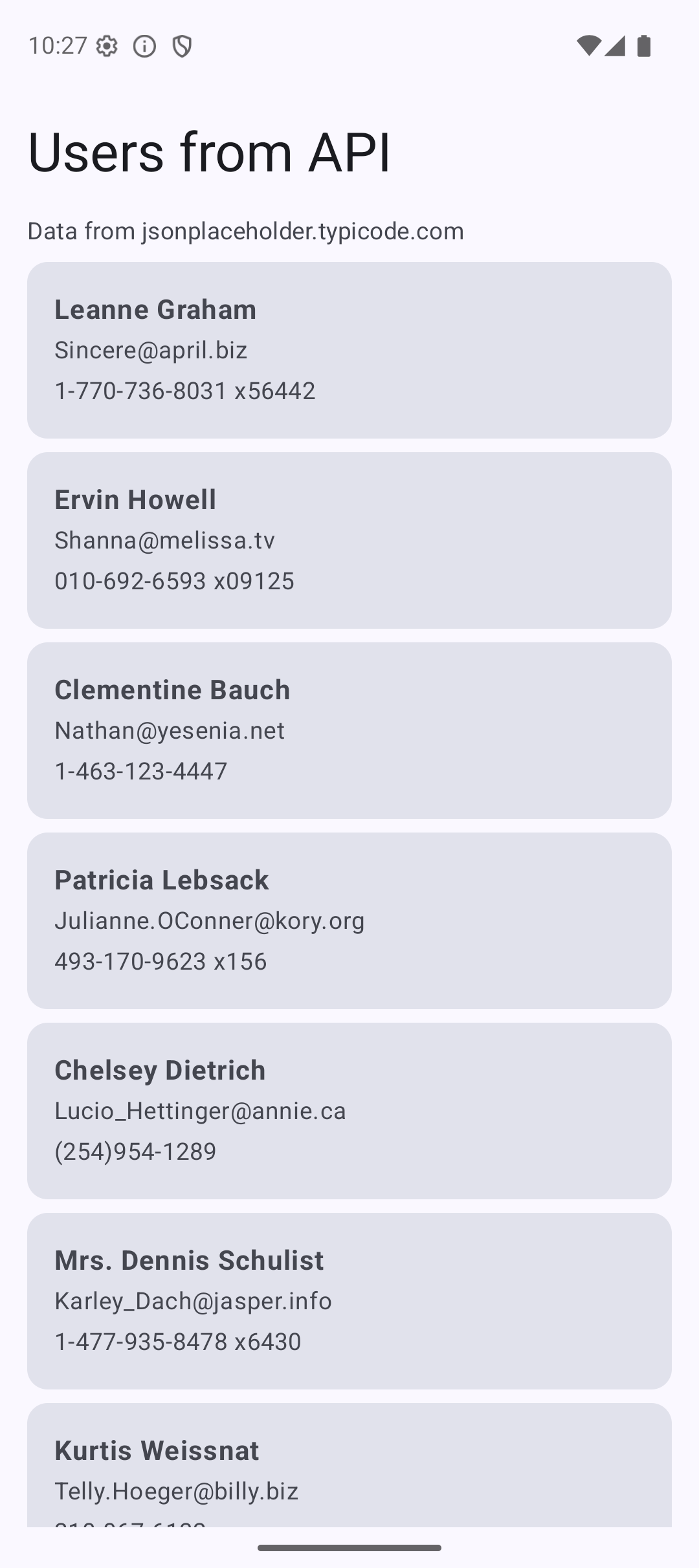
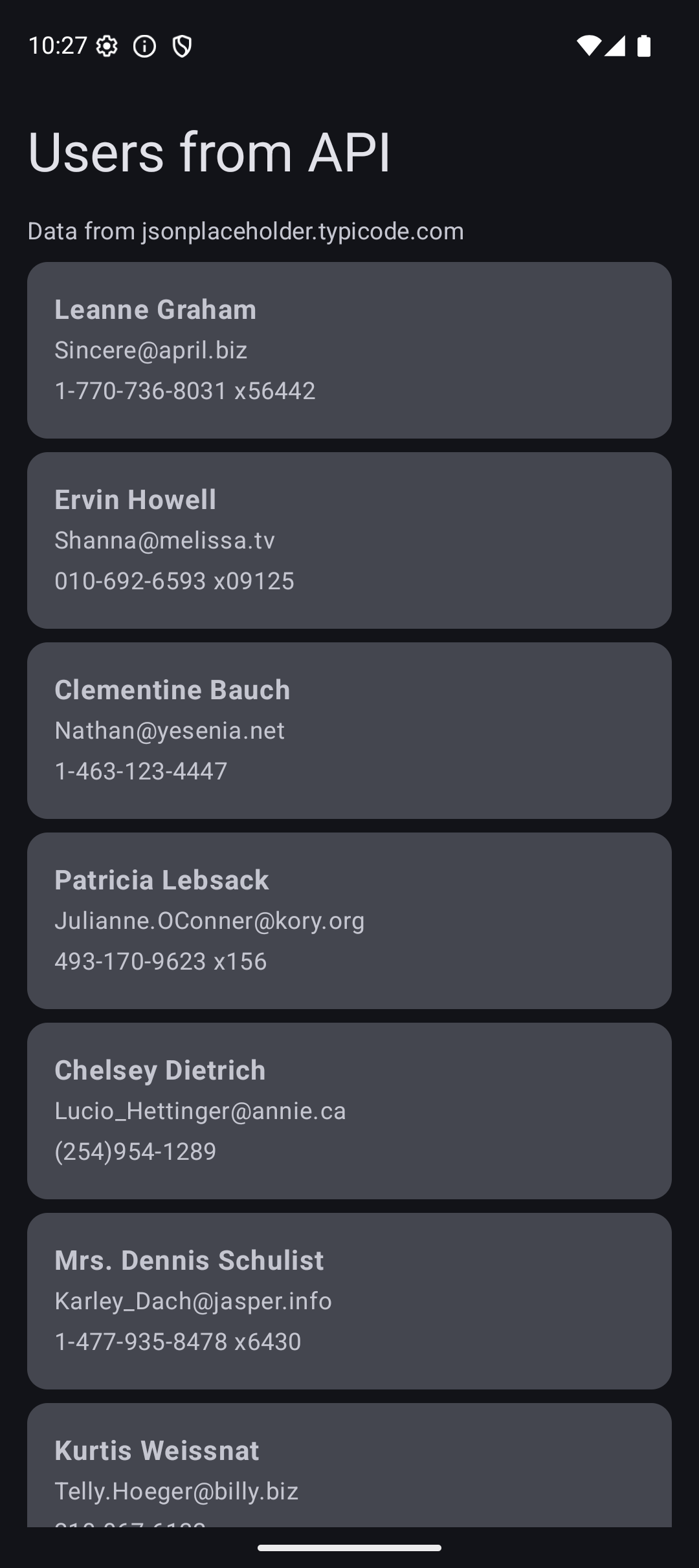
Here is what the app looks like when you run the code from this tutorial:
| Light Mode | Dark Mode |
|---|---|
 |  |
Source Code
The complete working code for this tutorial is on GitHub:
Related Tutorials
- Tutorial #9: ViewModel — StateFlow and viewModelScope that power the API layer
- Tutorial #11: Side Effects — LaunchedEffect for triggering API calls
- Tutorial #6: Lists — LazyColumn for displaying API data
- Jetpack Compose Cheat Sheet — quick reference for every component and modifier.
- Full Series: Jetpack Compose Tutorial — all 25 tutorials from zero to publishing.
What’s Next?
In the next tutorial, we will learn about Room Database — saving data locally so your app works offline. Combined with Retrofit, you can build an app that loads from the internet and caches locally.
See you there.