This is the most important tutorial in the entire series.
If you don’t understand state, nothing in Compose will make sense. If you do understand it, everything clicks.
State is the reason the login form from the previous tutorial worked. It is the reason buttons can toggle, text fields can update, and screens can change. Without state, your UI is frozen — it shows something once and never changes.
Let’s fix that.
What is State?
State is any value that can change over time and affects what the UI shows.
Examples of state:
- Is the user logged in? (
trueorfalse) - What text did the user type? (
"hello") - Is the data loading? (
trueorfalse) - How many items are in the cart? (
3) - Is dark mode on? (
trueorfalse)
When state changes, the UI updates automatically. That is the magic of Compose.
The Problem: Compose Forgets Everything
Here is a mistake every beginner makes:
@Composable
fun BrokenCounter() {
    var count = 0 // This resets to 0 every time!

    Column {
        Text("Count: $count")
        Button(onClick = { count++ }) {
            Text("Add")
        }
    }
}
You tap the button. Nothing happens. The count stays at 0.
Why? Because every time something changes, Compose redraws the function from scratch. This is called recomposition. When it redraws, var count = 0 runs again, and the count goes back to 0.
The button does increase count to 1. But then Compose redraws, and count becomes 0 again. You never see the change.
The Fix: remember and mutableStateOf
To keep a value across recompositions, wrap it with remember:
@Composable
fun WorkingCounter() {
    var count by remember { mutableStateOf(0) }

    Column {
        Text("Count: $count")
        Button(onClick = { count++ }) {
            Text("Add")
        }
    }
}
Now it works. Tap the button, and the count goes up.
What Does remember Do?
remember tells Compose: “Keep this value. Don’t reset it when you redraw.”
What Does mutableStateOf Do?
mutableStateOf tells Compose: “Watch this value. When it changes, redraw the UI.”
Together:
remember= keep the valuemutableStateOf= watch the value
You need both. Without remember, the value resets. Without mutableStateOf, Compose doesn’t know the value changed and won’t update the UI.
Note: The by keyword (called a delegate) requires these imports. If you get a compiler error, add them:
import androidx.compose.runtime.getValue
import androidx.compose.runtime.setValue
How Recomposition Works in Jetpack Compose
This is the key concept. Here is the cycle:
1. Compose draws the UI based on current state
2. User does something (tap, type, scroll)
3. State changes
4. Compose redraws ONLY the parts that use that state
5. Back to step 2
Compose is smart. It doesn’t redraw the entire screen. It only redraws the Composables that read the changed state. This is why Compose is fast.
Example: Only Part of the Screen Updates
@Composable
fun SmartRecomposition() {
    var count by remember { mutableStateOf(0) }

    Column {
        Text("This text never changes") // NOT redrawn when count changes
        Text("Count: $count")            // Only THIS is redrawn
        Button(onClick = { count++ }) {
            Text("Add")
        }
    }
}
When you tap the button, only Text("Count: $count") is redrawn. The other Text and the Button stay the same. Compose tracks which Composables read which state.
Common State Types
Boolean — Toggle On/Off
@Composable
fun DarkModeToggle() {
    var isDarkMode by remember { mutableStateOf(false) }

    Row(verticalAlignment = Alignment.CenterVertically) {
        Text(if (isDarkMode) "Dark Mode: ON" else "Dark Mode: OFF")
        Spacer(modifier = Modifier.width(8.dp))
        Switch(
            checked = isDarkMode,
            onCheckedChange = { isDarkMode = it }
        )
    }
}
String — Text Input
@Composable
fun NameInput() {
    var name by remember { mutableStateOf("") }

    Column {
        OutlinedTextField(
            value = name,
            onValueChange = { name = it },
            label = { Text("Your name") }
        )
        if (name.isNotEmpty()) {
            Text("Hello, $name!")
        }
    }
}
Int — Counter
@Composable
fun SimpleCounter() {
    var count by remember { mutableStateOf(0) }

    Row(verticalAlignment = Alignment.CenterVertically) {
        Button(onClick = { count-- }) { Text("-") }
        Text(
            text = "$count",
            modifier = Modifier.padding(horizontal = 16.dp),
            fontSize = 24.sp
        )
        Button(onClick = { count++ }) { Text("+") }
    }
}
List — Dynamic Items
@Composable
fun TodoList() {
    var items by remember { mutableStateOf(listOf("Buy groceries", "Clean house")) }
    var newItem by remember { mutableStateOf("") }

    Column {
        // Input for new items
        Row {
            OutlinedTextField(
                value = newItem,
                onValueChange = { newItem = it },
                label = { Text("New item") },
                modifier = Modifier.weight(1f)
            )
            Spacer(modifier = Modifier.width(8.dp))
            Button(
                onClick = {
                    if (newItem.isNotBlank()) {
                        items = items + newItem  // Create a NEW list (don't mutate)
                        newItem = ""
                    }
                }
            ) {
                Text("Add")
            }
        }

        Spacer(modifier = Modifier.height(16.dp))

        // Display items
        items.forEach { item ->
            Text("• $item", modifier = Modifier.padding(vertical = 4.dp))
        }
    }
}
Important: Notice we write items = items + newItem. We create a new list instead of modifying the existing one. Compose only detects state changes when you assign a new value. If you use items.add(), Compose won’t know the list changed and won’t update the UI.
remember vs rememberSaveable — Surviving Screen Rotation
remember keeps state across recompositions. But it does NOT survive:
- Screen rotation
- Process death (Android killing your app in the background)
For that, use rememberSaveable:
@Composable
fun SaveableCounter() {
    // This survives screen rotation!
    var count by rememberSaveable { mutableStateOf(0) }

    Column {
        Text("Count: $count")
        Button(onClick = { count++ }) {
            Text("Add")
        }
    }
}
When to Use Which?
| remember | rememberSaveable | |
|---|---|---|
| Survives recomposition | Yes | Yes |
| Survives rotation | No | Yes |
| Survives process death | No | Yes |
| Use for | UI state (animations, hover) | User input (form fields, selections) |
Rule of thumb: If the user would be annoyed losing this value after rotating their phone — use rememberSaveable. For everything else, remember is fine.
Compose State Hoisting
State hoisting is a pattern where you move state UP from a child Composable to its parent. This makes your components reusable.
Without Hoisting (Bad)
@Composable
fun CounterWithInternalState() {
    // State is trapped inside this Composable
    var count by remember { mutableStateOf(0) }

    Text("Count: $count")
    Button(onClick = { count++ }) { Text("Add") }
}
This counter works, but the parent cannot read or control the count. The state is hidden inside.
With Hoisting (Good)
// The Composable receives state and sends events UP
@Composable
fun Counter(
    count: Int,           // State comes DOWN from parent
    onIncrement: () -> Unit  // Events go UP to parent
) {
    Text("Count: $count")
    Button(onClick = onIncrement) { Text("Add") }
}

// The parent owns and controls the state
@Composable
fun ParentScreen() {
    var count by remember { mutableStateOf(0) }

    Counter(
        count = count,
        onIncrement = { count++ }
    )
}
Now the parent controls the state. The Counter is just a display — it shows what it receives and reports what happens. This makes Counter reusable anywhere.
The Hoisting Pattern
State flows DOWN (parent → child)
Events flow UP (child → parent)
This is the same pattern as MVI (Tutorial #10), just at the component level:
- State down: The parent passes
countto the child - Events up: The child calls
onIncrementwhen the button is tapped
When to Hoist State
Hoist state when:
- Multiple Composables need to read the same state
- A parent needs to control a child’s behavior
- You want to make a Composable reusable
Keep state local when:
- Only one Composable uses it
- It is purely visual (like an animation)
Practical Example: Interactive Profile Editor
Let’s build something that uses everything we learned:
@Composable
fun ProfileEditor() {
    var name by rememberSaveable { mutableStateOf("") }
    var bio by rememberSaveable { mutableStateOf("") }
    var isPublic by rememberSaveable { mutableStateOf(true) }
    var saved by remember { mutableStateOf(false) }

    Column(
        modifier = Modifier
            .fillMaxSize()
            .padding(24.dp),
        verticalArrangement = Arrangement.spacedBy(16.dp)
    ) {
        Text("Edit Profile", fontSize = 24.sp, fontWeight = FontWeight.Bold)

        // Name field — rememberSaveable so it survives rotation
        OutlinedTextField(
            value = name,
            onValueChange = {
                name = it
                saved = false  // Mark as unsaved when user edits
            },
            label = { Text("Name") },
            modifier = Modifier.fillMaxWidth()
        )

        // Bio field
        OutlinedTextField(
            value = bio,
            onValueChange = {
                bio = it
                saved = false
            },
            label = { Text("Bio") },
            modifier = Modifier.fillMaxWidth(),
            minLines = 3
        )

        // Public profile toggle
        Row(verticalAlignment = Alignment.CenterVertically) {
            Text("Public profile")
            Spacer(modifier = Modifier.weight(1f))
            Switch(
                checked = isPublic,
                onCheckedChange = {
                    isPublic = it
                    saved = false
                }
            )
        }

        // Preview of what the profile looks like
        if (name.isNotEmpty()) {
            Text(
                text = "Preview",
                fontWeight = FontWeight.Medium,
                color = MaterialTheme.colorScheme.primary
            )
            Text(text = name, fontWeight = FontWeight.Bold, fontSize = 18.sp)
            if (bio.isNotEmpty()) {
                Text(text = bio, color = MaterialTheme.colorScheme.onSurfaceVariant)
            }
            Text(
                text = if (isPublic) "🌐 Public" else "🔒 Private",
                fontSize = 14.sp
            )
        }

        Spacer(modifier = Modifier.weight(1f))

        // Save button
        Button(
            onClick = { saved = true },
            enabled = name.isNotBlank() && !saved,
            modifier = Modifier.fillMaxWidth()
        ) {
            Text(if (saved) "Saved ✓" else "Save Profile")
        }
    }
}
This profile editor uses:
rememberSaveablefor user input (survives rotation)rememberfor the saved flag (doesn’t need to survive rotation)- Boolean state for the public/private toggle
- String state for text fields
- Conditional rendering based on state (
if name.isNotEmpty()) - Button that disables when already saved or name is empty
Common Mistakes
Mistake 1: Forgetting remember
// WRONG — resets to 0 on every recomposition
var count = mutableStateOf(0)

// RIGHT — keeps the value
var count by remember { mutableStateOf(0) }
Mistake 2: Mutating State Instead of Replacing
// WRONG — Compose won't detect the change
val items = remember { mutableStateOf(mutableListOf("A", "B")) }
items.value.add("C") // Mutating the same list — Compose doesn't notice

// RIGHT — Create a new list
var items by remember { mutableStateOf(listOf("A", "B")) }
items = items + "C" // New list — Compose detects the change
Mistake 3: Using remember for Data That Should Survive Rotation
// WRONG — user loses their typed text when they rotate the phone
var email by remember { mutableStateOf("") }

// RIGHT — text survives rotation
var email by rememberSaveable { mutableStateOf("") }
Mistake 4: Putting State Too Deep
// BAD — every component has its own state, parent can't coordinate
@Composable
fun Screen() {
    SearchBar()  // Has its own search state inside
    FilterBar()  // Has its own filter state inside
    ItemList()   // Has its own items state inside
    // How does ItemList know what SearchBar typed? It can't!
}

// GOOD — parent owns the state, children receive it
@Composable
fun Screen() {
    var query by remember { mutableStateOf("") }
    var filter by remember { mutableStateOf("all") }

    SearchBar(query = query, onQueryChange = { query = it })
    FilterBar(filter = filter, onFilterChange = { filter = it })
    ItemList(query = query, filter = filter)
}
Quick Summary
| Concept | What It Does |
|---|---|
| State | A value that changes over time and affects the UI |
| remember | Keeps a value across recompositions (but not rotation) |
| mutableStateOf | Makes Compose watch a value for changes |
| rememberSaveable | Keeps a value across recompositions AND rotation |
| Recomposition | Compose redraws only the parts that use changed state |
| State hoisting | Moving state up to the parent for better control |
The golden rules:
- State changes → UI updates automatically
- Use
remember+mutableStateOftogether - Use
rememberSaveablefor user input - Create new values instead of mutating existing ones
- Hoist state when multiple components need it
Result
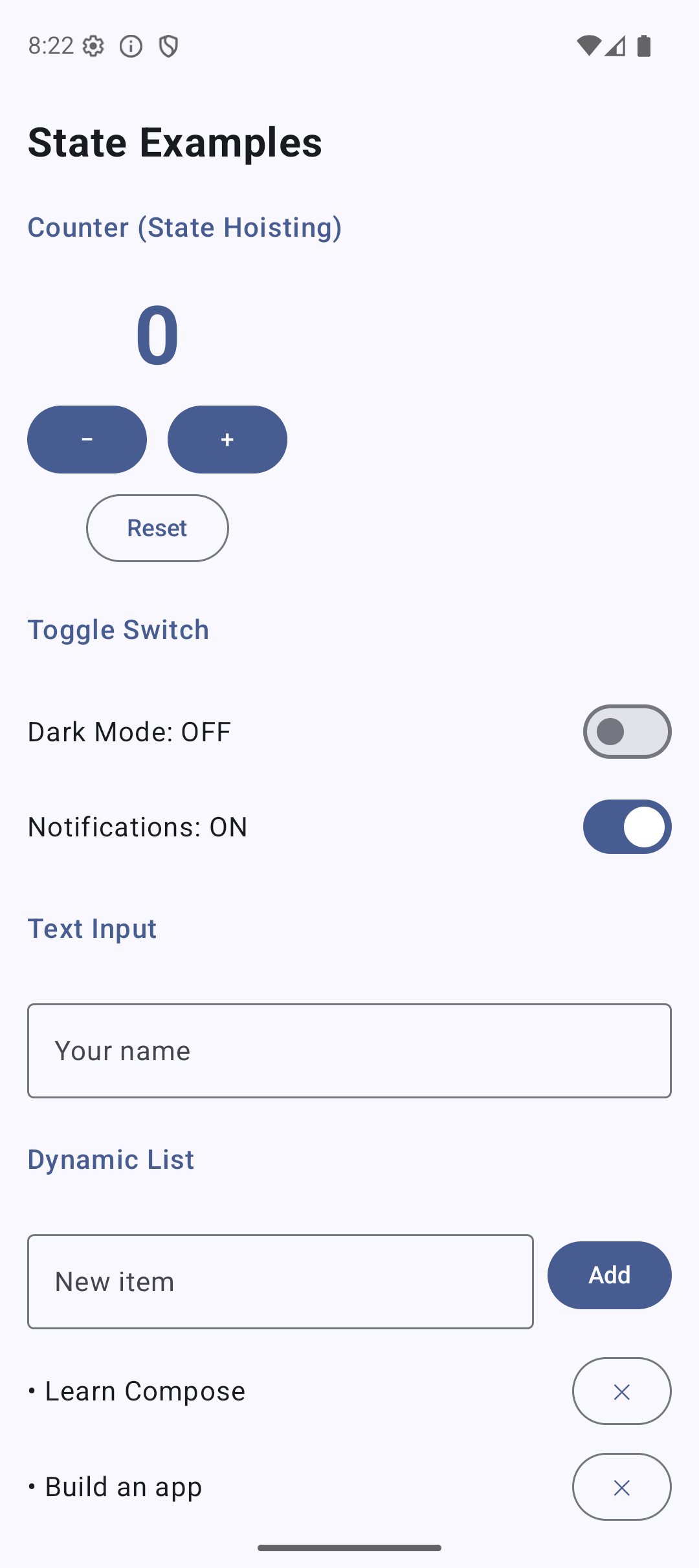
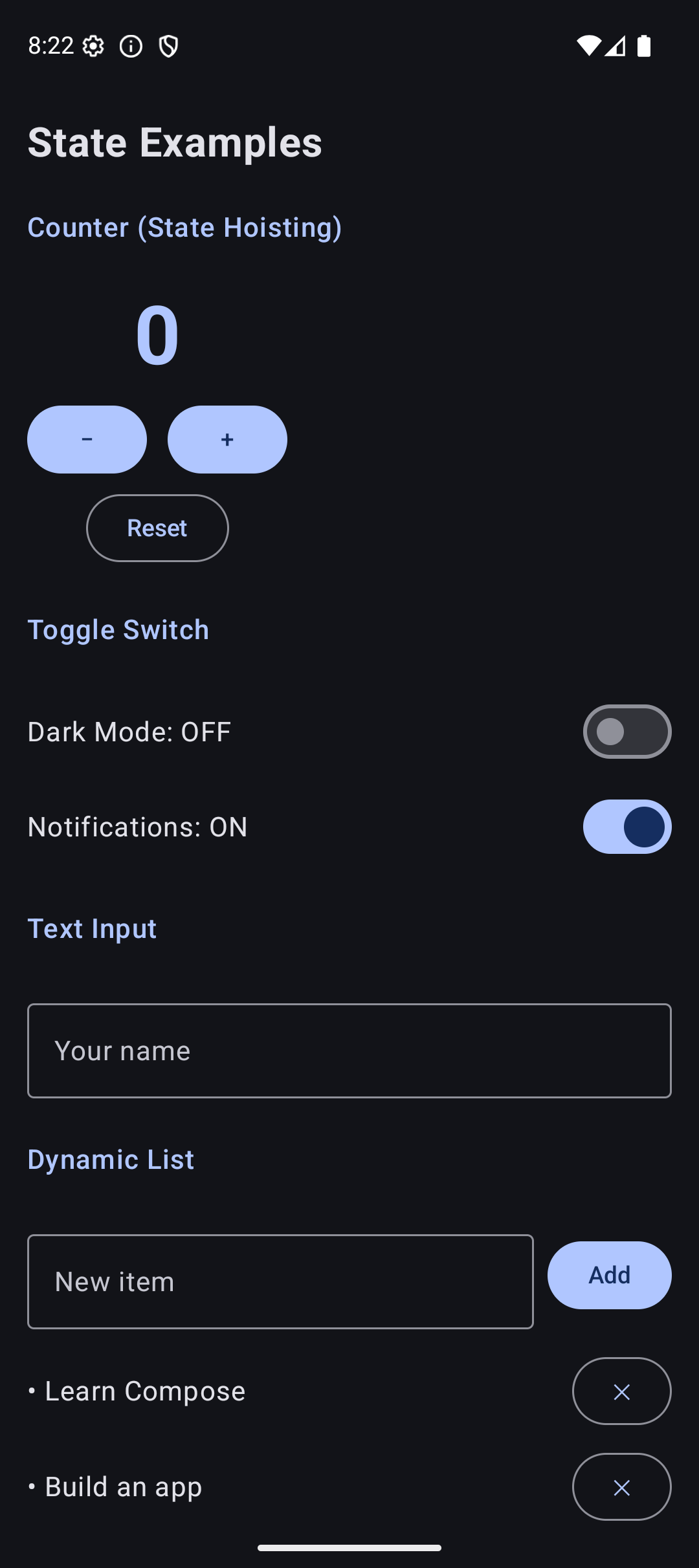
Here is what the app looks like when you run the code from this tutorial:
| Light Mode | Dark Mode |
|---|---|
 |  |
Source Code
The complete working code for this tutorial is on GitHub:
Related Tutorials
- Tutorial #4: Text, Button, Image, TextField — the login form that uses state
- Tutorial #10: MVI Pattern — state management at scale with ViewModel
- Jetpack Compose Cheat Sheet — quick reference for every component and modifier.
- Full Series: Jetpack Compose Tutorial — all 25 tutorials from zero to publishing.
What’s Next?
In the next tutorial, we will learn about Lists — LazyColumn and LazyRow. These are the Compose replacements for RecyclerView, and they are much simpler to use.
See you there.